

A figure that looks sharp on a laptop screen can still fail a journal's print resolution check. This figure checker reads the pixel dimensions of an image you upload, converts them into effective DPI at the width the figure will actually print, and tells you whether it clears common submission thresholds — no upload to any server, no signup.
This figure checker runs entirely in your browser — the image is never uploaded to a server.
Upload a figure above to see its pixel size, effective print DPI, and whether it clears common submission thresholds.
DPI stands for dots per inch, and for a digital figure it only becomes a real number once you fix a print size. A 3000-pixel-wide image is not "300 DPI" on its own — it is 3000 pixels spread across whatever width it lands on the page. Stretch the file to fill a full page and the DPI drops; shrink it to a single column and the DPI climbs. A figure resolution checker needs that target width before a DPI number means anything.
The formula behind every figure checker is simple: effective DPI equals pixel width divided by the target width in inches, or pixel width divided by (millimeters ÷ 25.4). A 1000-pixel-wide image printed at a single-column width of 85 mm works out to roughly 299 DPI — comfortably past a 300 DPI halftone floor if you round, short of it if you don't, which is exactly the kind of edge case a manual glance at a photo can't catch. Print the same file at a double-column width of 170 mm and the effective DPI is cut in half, to around 149 DPI, even though the pixel file never changed.
This is why "the image looks clear on my screen" is not evidence of anything. A monitor renders every image at roughly 90–110 pixels per inch regardless of the file's dimensions, so a 72 DPI web graphic and a 1200 DPI scan can look identical on screen while one falls apart the moment it is printed at journal size. A DPI checker replaces that guess with the actual division: pixels in, target print width in, effective DPI out — the same arithmetic a production editor runs by hand when a submission comes in under-resolved.
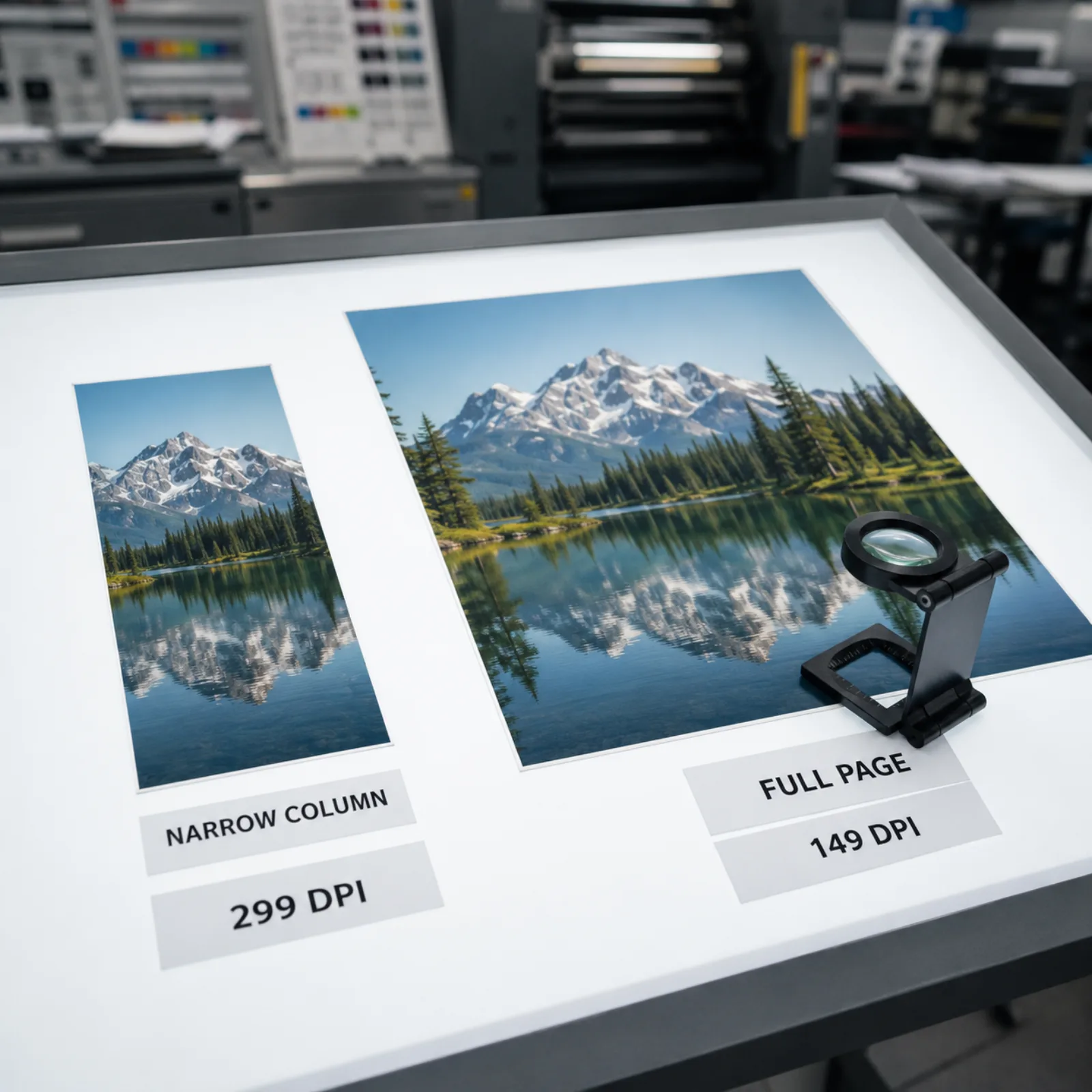
The same manuscript figure checker workflow works for a single panel, a multi-panel composite, or a graphical abstract draft.
Drop in a PNG, JPG, TIFF, WebP, SVG, or PDF. The figure checker reads its pixel width and height locally — the file never leaves your browser.
Enter the width the figure will actually occupy on the page, or use the single-column (85 mm) or double-column (170 mm) preset if you don't know your journal's exact column width yet.
Line art, combination (line plus halftone), and pure halftone or photographic images carry different conventional DPI floors, so the checker applies the right one to your figure.
The figure checker reports the effective DPI at your chosen width, whether it clears the threshold for that figure type, and — if it falls short — the minimum pixel width that would fix it.
Four situations that come up constantly when a figure that looked fine on a laptop hits a journal's print resolution requirement.
A 900-pixel-wide screenshot of a plot looks crisp full-screen, but printed at a single 85 mm column it works out to under 270 effective DPI — below the usual halftone floor and well under a line-art threshold. A figure resolution checker catches this before a reviewer does.
An SVG or a vector PDF has no fixed pixel grid — it redraws at whatever resolution the output device asks for, so it stays sharp at a business card or a poster. A DPI checker should recognize vector formats and say so, instead of forcing a meaningless pixel-to-inch number onto a file that doesn't have one.
The same 2000-pixel-wide chart clears roughly 597 DPI at an 85 mm single column but drops to about 299 DPI spread across a 170 mm double column — still fine for a halftone image, borderline for line art. Checking a figure without fixing which column width applies gives you the wrong answer.
Stretching a 600-pixel-wide inset to fill a 170 mm panel doesn't add detail — it spreads the same pixels over more paper, and the effective DPI collapses well below any usable threshold. A manuscript figure checker makes that math visible instead of letting it surface as a reviewer comment months later.
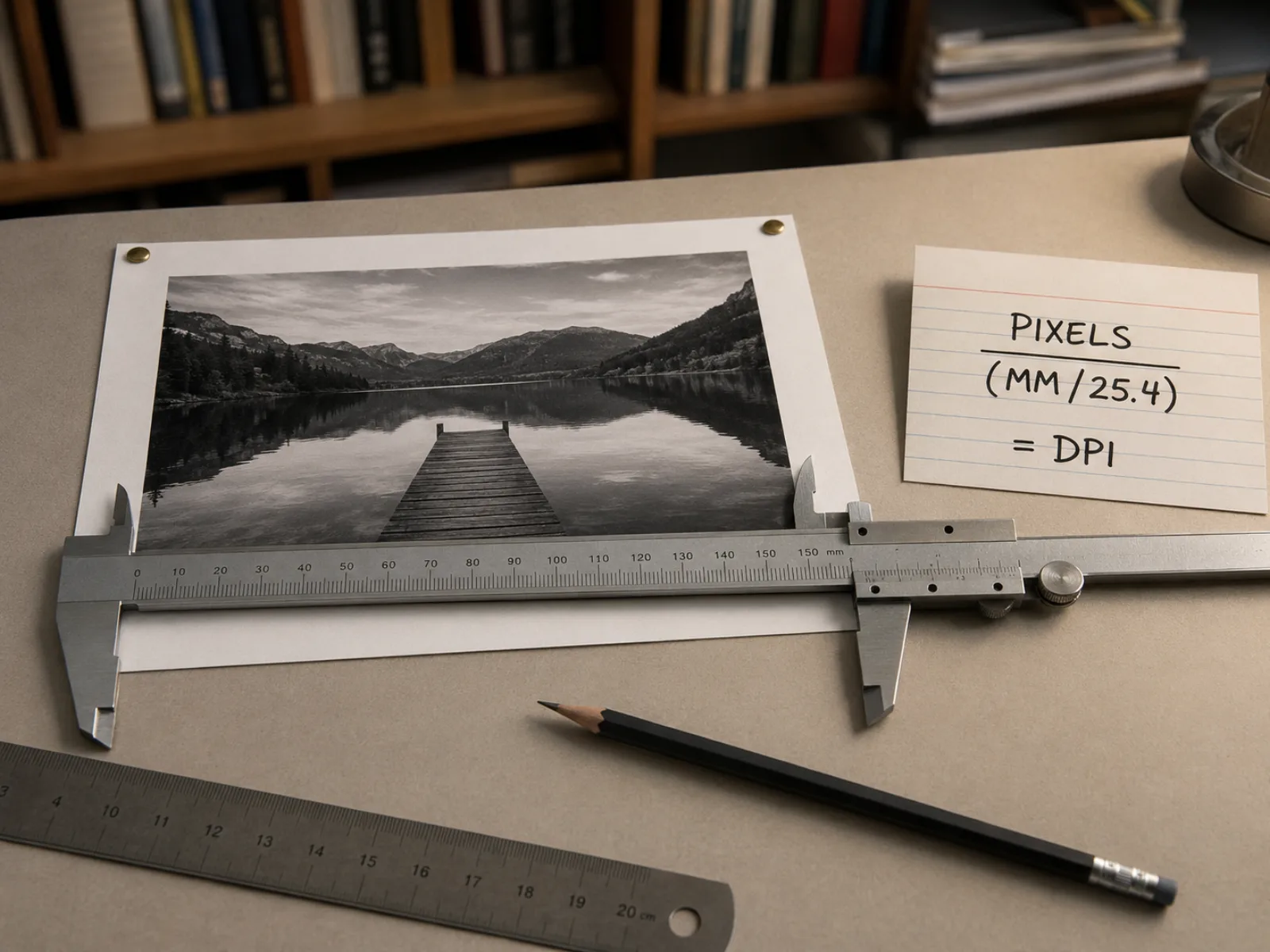
The core of this figure checker is one division: pixel width ÷ (target width in millimeters ÷ 25.4). Type in the width your figure will print at — a single column, a double column, or any custom measurement — and it converts your image's actual pixel dimensions into the DPI number a production editor would calculate by hand.
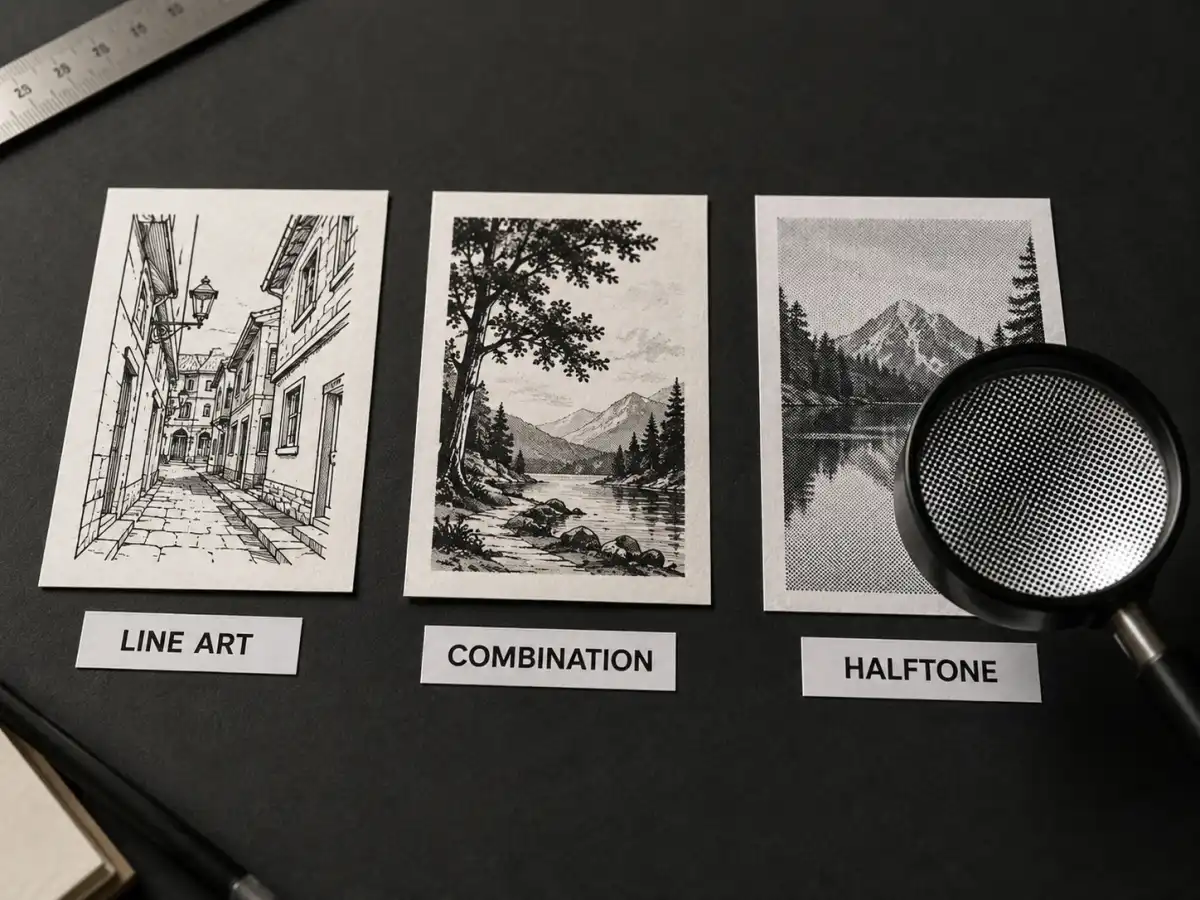
Line art, combination artwork, and halftone or photographic images have different conventional resolution floors — line art is judged far more strictly than a photograph because thin strokes and small text are the first thing to blur. Pick the figure type and the checker applies the matching threshold instead of one generic cutoff.
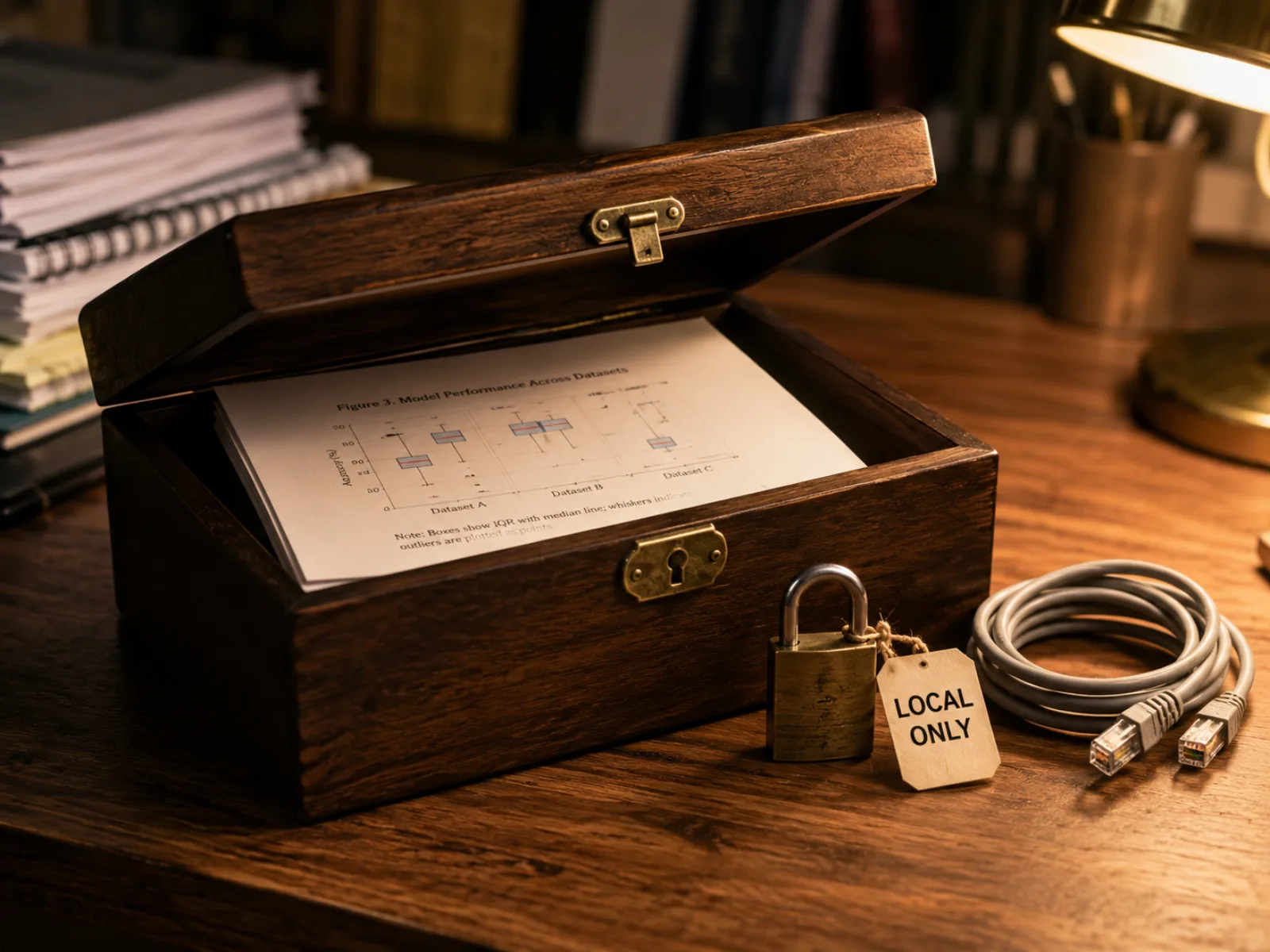
This figure checker reads your image's pixel dimensions with the browser's own image-decoding APIs and runs every calculation locally. Your figure is never uploaded, stored, or sent to any server — useful when the image is from an unpublished manuscript you can't share outside your own machine.
Common questions from authors checking figure resolution before submission.
Upload a figure, set the print width your journal actually uses, and this figure checker tells you the effective DPI and whether it clears common thresholds — before a reviewer has to tell you instead.